Google Play Feature Graphic Size & Requirements (2026)
The exact 1024×500 Google Play feature-graphic spec, plus the content rules, cutoff zones, video overlay considerations, and a practical design checklist for a banner that still reads on a phone.
Quick answer
What size is a Google Play feature graphic in 2026?
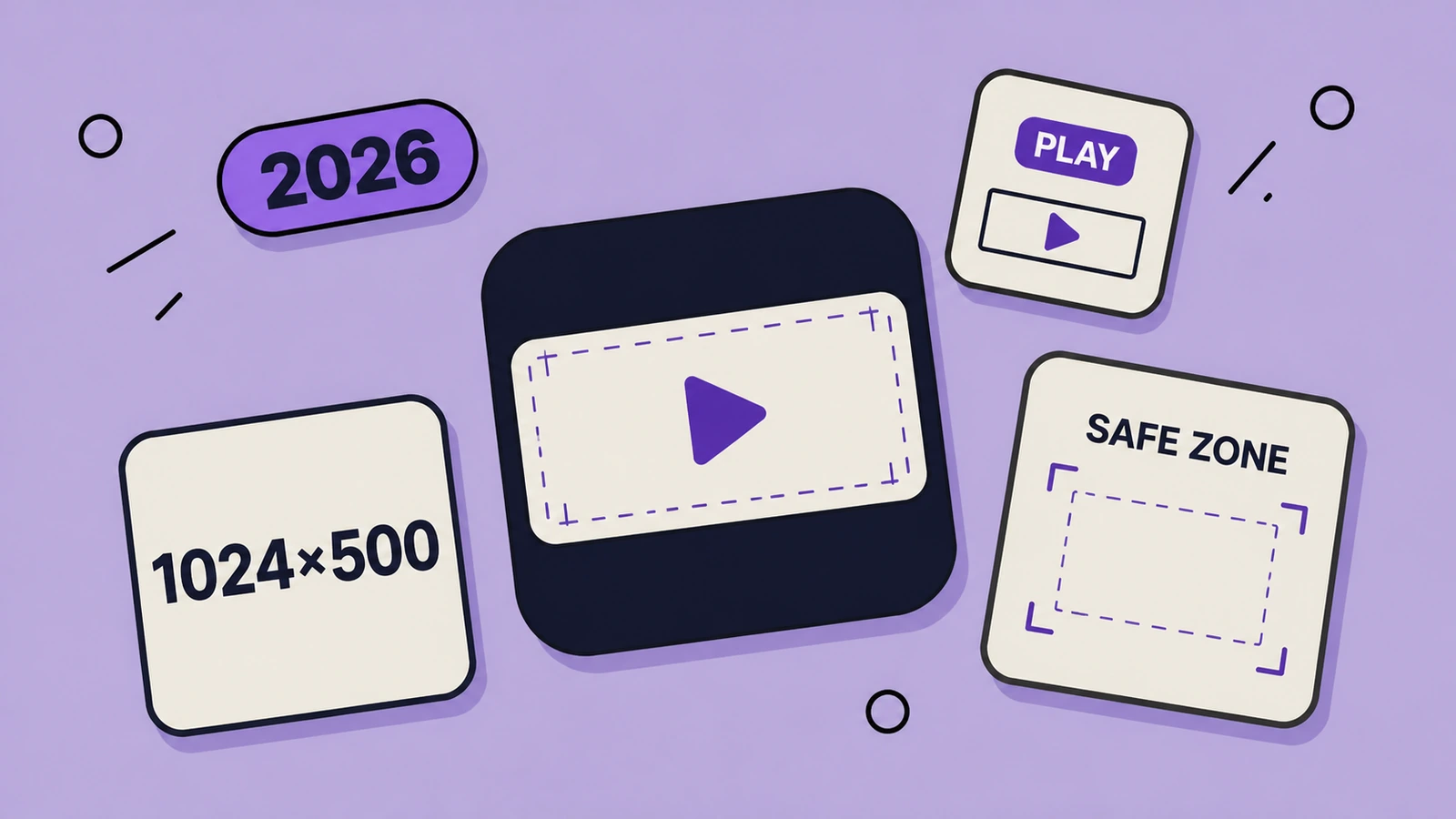
A Google Play feature graphic must be exactly 1024×500 pixels. Upload it as a JPEG or 24-bit PNG with no alpha channel. Keep the core visual and focal point near the center: Google may crop edge content or place UI overlays over the banner, and it uses the graphic as the cover image when you add a preview video.
- Exactly 1024×500 px
- JPEG or 24-bit PNG only; no transparency
- Keep critical visuals centered and away from cutoff zones
- Avoid small text, device mockups, awards, price claims, and Play badges
- Add concise, descriptive alt text
On this page
The Google Play feature graphic is a distinct listing asset, not a stretched phone screenshot. It is the wide banner Google can use on promotional surfaces and as the cover image for an attached preview video. Because it has a fixed 1024×500 canvas and can be shown in several contexts, it rewards one strong visual idea over a dense montage.
Google Play feature graphic requirements
| Property | Requirement |
|---|---|
| Canvas | Exactly 1024×500 pixels |
| Aspect ratio | About 2.05:1 |
| File type | JPEG or 24-bit PNG |
| Transparency | No alpha channel |
| Primary use | Large-format Play surfaces and preview-video cover image |
| Accessibility | Provide alt text that identifies the important visual in 140 characters or fewer |
Export a flat, opaque 1024×500 JPEG or 24-bit PNG. No alternate ratio replaces this required canvas.
Where Google uses the feature graphic
- As the cover image behind the play control for your preview video, when one is present.
- In large-format app collections; Google may use feature graphics in ads.
- For games, in large recommended-game presentations alongside previews and screenshots.
- Alongside your icon and app name, which is why duplicating your icon or wordmark at huge scale is usually wasted space.
Design around cutoff zones and overlays
Google’s guidance is to keep prominent visuals and the focal point toward the center and restrict background elements to the edges. That is more useful than treating a fixed pixel rectangle as a guaranteed safe area: different Play layouts can crop or overlay UI. Put the product’s core visual in the center, keep the edges decorative, and avoid letting a headline rely on one narrow strip.
| Area | Use it for | Avoid |
|---|---|---|
| Center | Primary visual, product moment, simple focal point | Tiny type or a logo that a play control could obscure |
| Edges | Color, texture, secondary background elements | Essential copy, faces, or UI controls |
| Whole banner | One idea that reads at small size | A collage of screen captures or a complete product walkthrough |
Build the banner as a centered focal composition. Treat its edges as expendable background, not as a reliable place for the product name or main promise.
Content Google advises you to avoid
- Fine details or small text that cannot be read on a phone.
- Prominent branding that simply duplicates the app icon shown beside it.
- Pure white, black, or dark gray fields that can disappear into Play surfaces.
- Ranking, review, award, price, discount, “free,” “new,” or download-count claims.
- Google Play badges, store icons, unlicensed third-party marks, or device imagery.
- Time-sensitive seasonal messages unless you have a plan to replace them promptly.
A feature graphic workflow that holds up
Create a Google Play feature graphic
Start from the product story, not from a generic banner template.
Choose one value proposition
Decide what a potential installer should understand at a glance: the feeling, core outcome, or distinctive use case.
Build the composition at 1024×500
Center the key visual and use the edges for supporting texture. Avoid a screenshot montage or a tiny device frame.
Check it at phone scale
Zoom out until the graphic is small. If the core idea depends on reading fine text, simplify it.
Export an opaque listing asset
Flatten the design and export JPEG or 24-bit PNG at exactly 1024×500. Confirm that no alpha channel remains.
Upload with alt text and review in context
Add the asset in Play Console under your main store listing’s Graphics section. Write direct alt text and assess it alongside the app icon, title, screenshots, and video.
Feature graphic vs. screenshots
| Asset | Job | Best creative approach |
|---|---|---|
| Feature graphic | Create a quick branded impression for prominent Play surfaces | One clear visual and a centered focal point |
| Phone screenshots | Explain core flows and convince the customer to install | Real UI, readable benefit captions, and a sequence of proof |
| Preview video | Demonstrate product motion and flow | Representative on-device experience; feature graphic may become its cover |
Let the feature graphic set the visual promise, then let screenshots prove it with real UI. Do not force every job into the 1024×500 banner.
Frequently asked questions
Is a Google Play feature graphic 1024×500?
Yes. Google Play specifies a 1024×500-pixel feature graphic.
Can a feature graphic have transparency?
No. Google Play requires JPEG or 24-bit PNG with no alpha channel for this asset.
Can I use a phone mockup in a Play feature graphic?
Google’s highly recommended guidance says to avoid device imagery. Focus the graphic on the app experience instead.
What should feature graphic alt text say?
Describe the meaningful visual briefly and specifically, without starting with “image of.” Keep it within Google’s recommended 140-character limit.
Keep reading
App Icon Sizes for App Store & Google Play (2026)
Every required app icon dimension for iOS, iPadOS, Android, Google Play, and the density buckets Xcode and Android Studio still expect - plus the format rules that cause rejection.
App Store & Google Play Screenshot Sizes (2026)
Every required and optional screenshot dimension for iPhone, iPad, Mac, Watch, Apple TV, Vision Pro, and Google Play - straight from Apple and Google's current specs.
App Store Screenshot Best Practices (2026)
How to design App Store and Google Play screenshots that convert - first-three rules, captions, storytelling, localization, and what to avoid in 2026.
Free tools that help here
App Icon Generator
Drop in one 1024px icon and download every iOS and Android size, ready for Xcode and Android Studio. Runs entirely in your browser - nothing gets uploaded.
Screenshot Beautifier
Add polished backgrounds, padding, shadows, and rounded corners to any screenshot in seconds. Perfect for social posts, docs, and portfolios.
Keep every listing visual on-brand
AppGrowthKit helps you build, edit, and export polished Google Play and App Store screenshot decks from one visual system.
Try AppGrowthKit