Store screenshots for developers who will not open Figma
Capture from the binary, generate a draft, tweak layers, export. AppGrowthKit is the screenshot and icon step between “the build works” and “the listing is uploaded.”
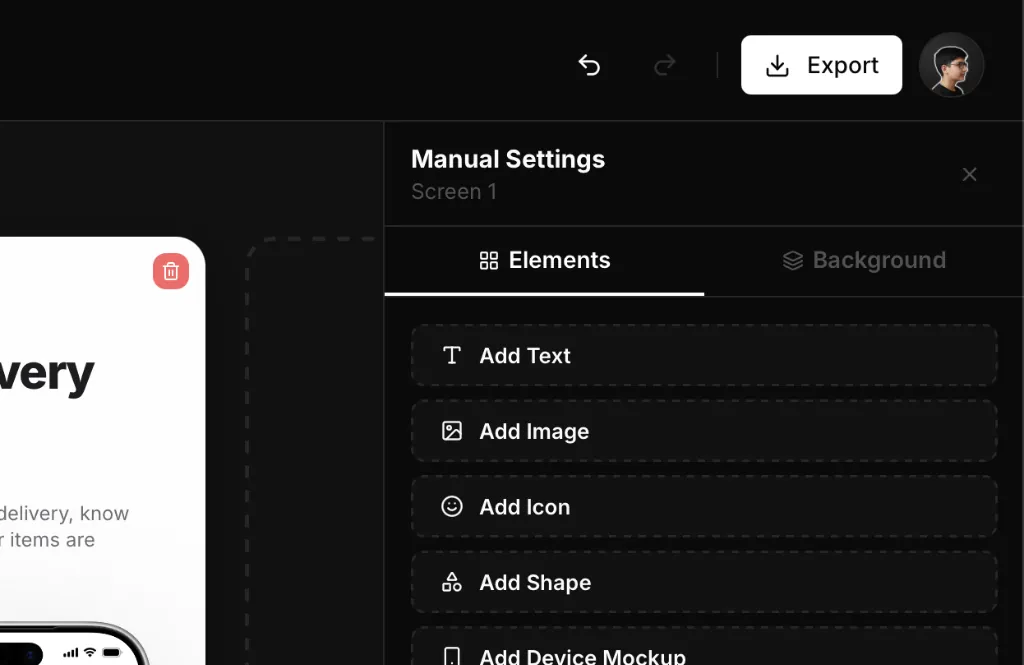
How it works
Ship the build, then shoot it
Use real captures. Guideline 2.3 is not optional, and generated UI is how listings get rejected.
Hand captions to a tool that knows store sizes
Draft with AppGrowthKit AI or paste research from Grok Bot. Keep character-short headlines on the canvas.
Export and upload
Download the pack. You stay in App Store Connect and Play Console for the actual publish.
What you get
No design-tool tax
Layers and properties are enough to fix type and frames. You do not need a design system file to ship a listing.
Icons in the same product
Generate app-icon directions and download store-ready icon sizes without a second subscription.
Works with agents
Grok Bot, Cursor, or ChatGPT can research competitors. AppGrowthKit is where those words become pixels.
From a simulator capture to a store listing
The screenshot step sits between a build that runs and a listing that can be uploaded. Capture the real UI, draft short headlines, export the sizes Apple and Google list. You stay in App Store Connect and Play Console for the publish.
| Step | Output | Check |
|---|---|---|
| Capture | Simulator or device PNG | Current UI, not a generated mock |
| Draft | Headlines on layers | 5–8 words. Edit anything generic |
| iPhone export | 1260×2736, 1290×2796, or 1320×2868 | JPEG or PNG, no alpha |
| Play export | Four frames at 1080×1920 or larger | Two is enough to publish; four is the recommendation bar |
Apple screenshot specificationsAI screenshot generatorGoogle Play screenshot generator
Questions
Developers and small app teams. The editor is a canvas, not a full illustration suite. The point is a store-accurate screenshot set in minutes.
Yes. Use Grok Bot for competitor teardowns and caption options, then place the surviving copy on real screens in AppGrowthKit and export.
Related generators
Close the listing after the build.
Generate the screenshot set from your captures and get back to the next release.